A persona you sign off on
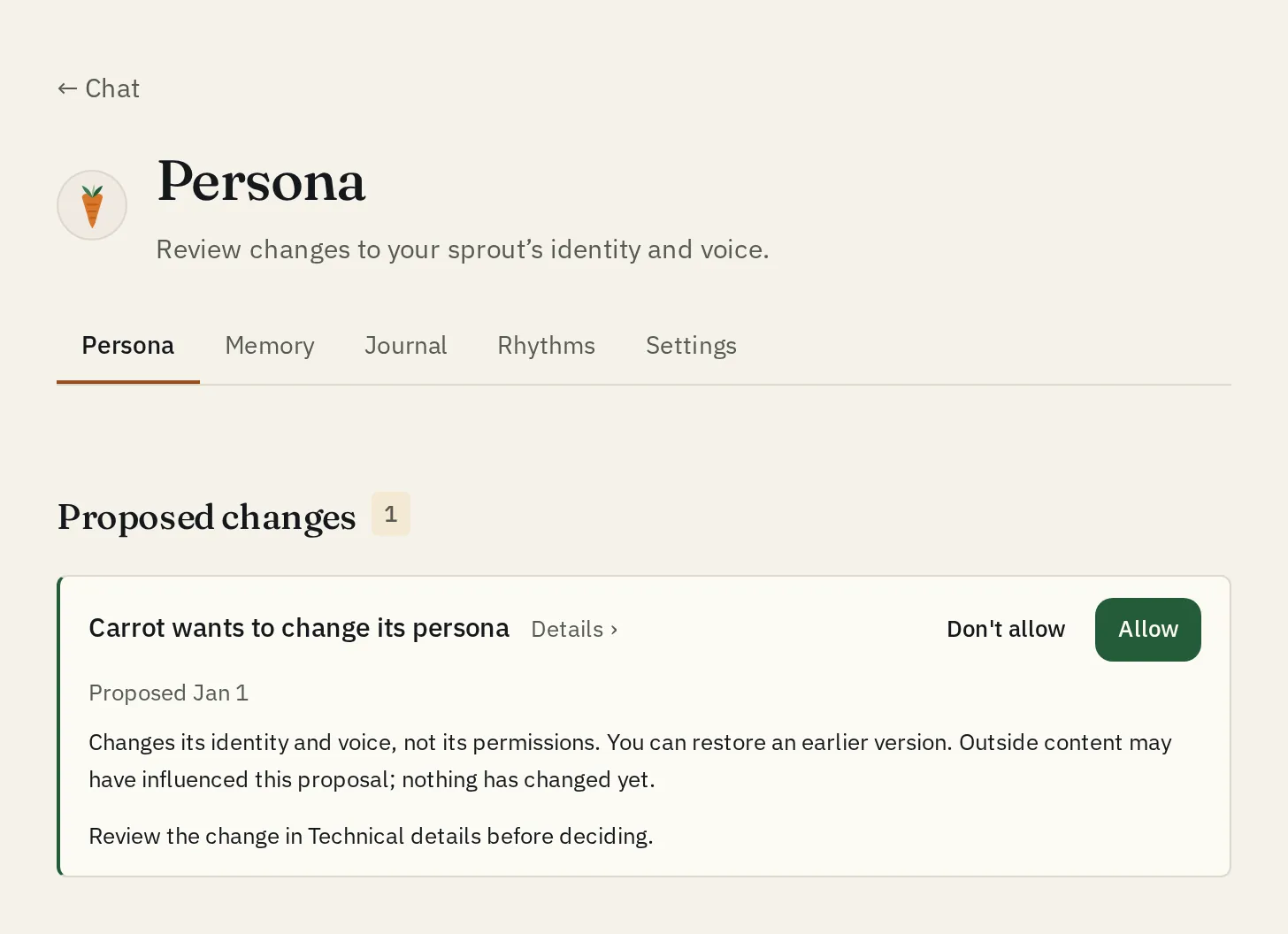
Each sprout’s identity and voice live in its persona. When a sprout wants to change it, you see the proposal and allow or decline it. Earlier versions are kept, so you can restore one.

Sprouts · A Vej project · Mac beta and iPhone
Run a team of AI helpers on your Mac, each with its own personality, memory, routines and private computer. Give them recurring work: a morning digest, a weekly check or reminders you would otherwise forget. Follow along and answer them from your iPhone.
The app
Every sprout is one ongoing conversation. Ask for recurring work in plain words, watch it get done and approve anything that needs your say.
A recording of the Sprouts Mac app with sample data. In the garden, Carrot strolls while Broccoli runs a command and Radish waits for input. You open Carrot and ask for a short digest of your GitHub repository every weekday at 8. Carrot thinks, lists the open pull requests and reads the new issues, then writes the first digest. It asks to add the rhythm “Morning digest”. You allow it, and Carrot confirms the next digest arrives tomorrow at 8:00.
On your iPhone
Your sprouts keep working on your Mac. The iPhone app tells you when a digest is ready or a sprout needs a decision, and you answer from wherever you are.
At 8:00 the lock screen shows two notifications from Carrot: the morning digest is ready, and an approval is requested. Then a recording of the Sprouts iPhone app with sample data: the chat shows the digest and the request “Carrot wants to post the review on pull request #142”. You tap Allow, Carrot works, then confirms the review was posted. Back in Your sprouts, Broccoli is running a command and Radish needs your input.
A closer look
Real screens from the Sprouts app, with sample data. Pick a feature to see it.
Each sprout’s identity and voice live in its persona. When a sprout wants to change it, you see the proposal and allow or decline it. Earlier versions are kept, so you can restore one.
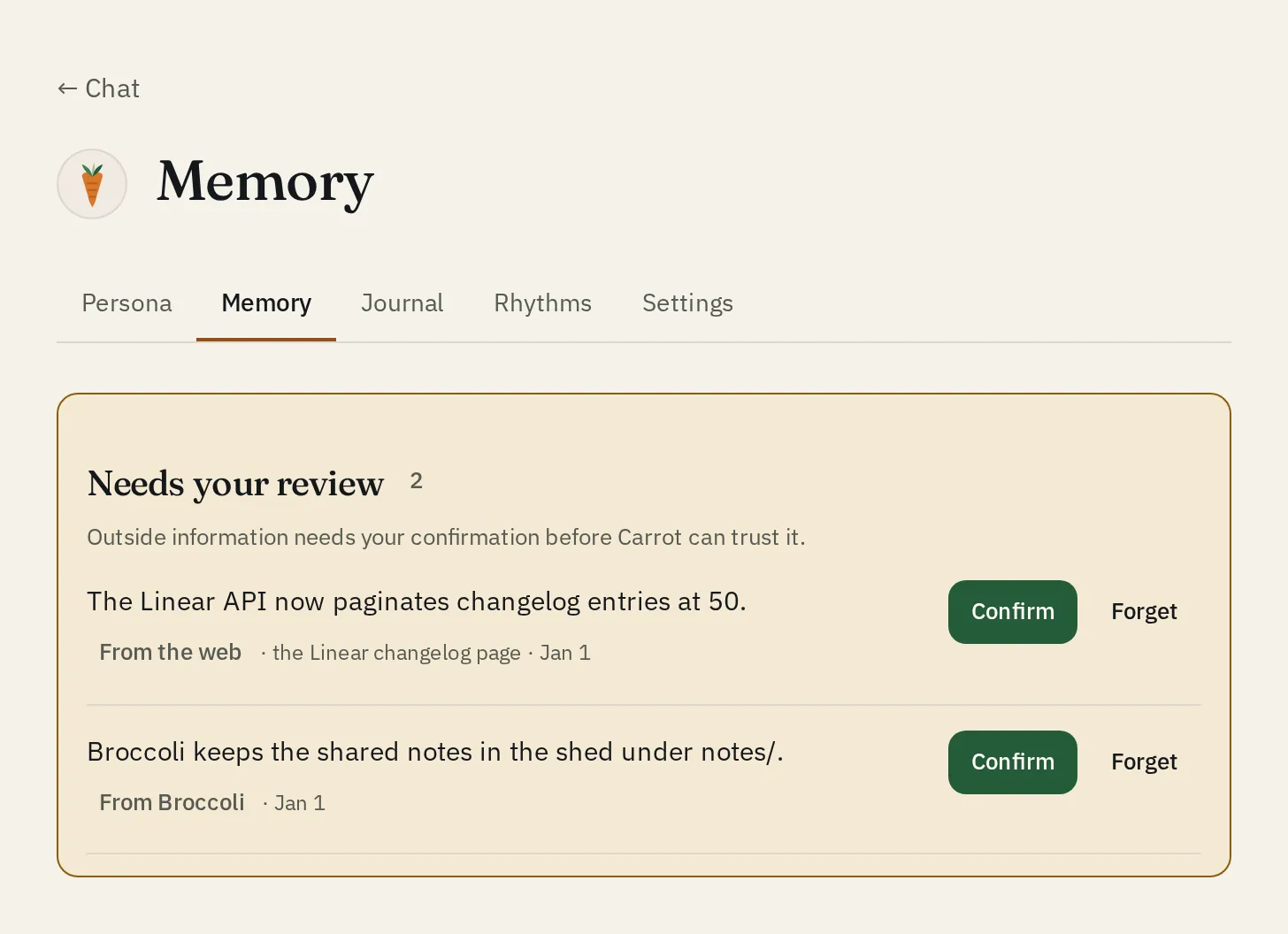
Sprouts remember what matters. Anything learned from the web or from another sprout waits under Needs your review until you confirm it or tell the sprout to forget it.
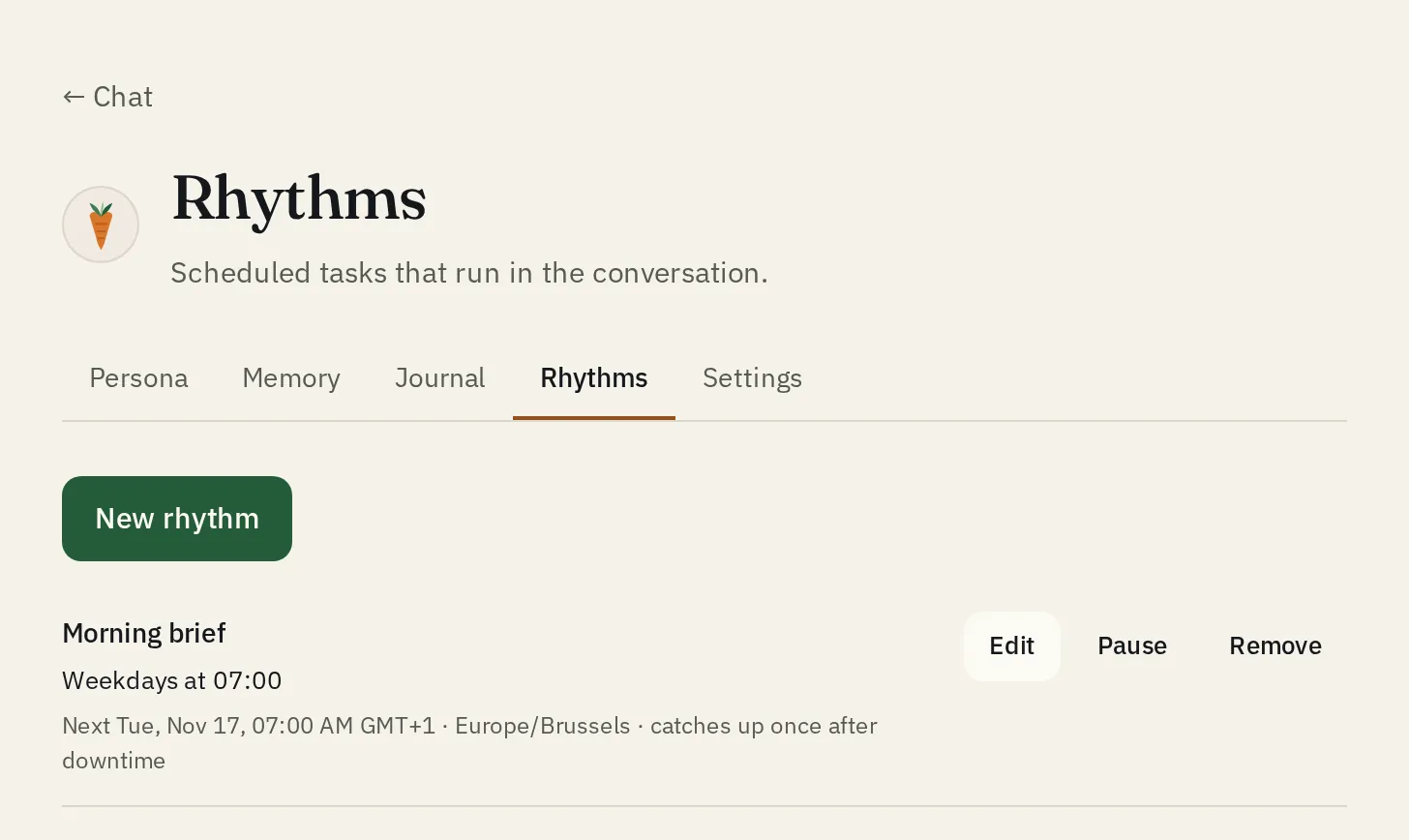
Schedule work in plain words: a morning brief on weekdays at 07:00, a weekly check, a reminder. Edit, pause or remove a rhythm whenever you like. After downtime, it catches up once.
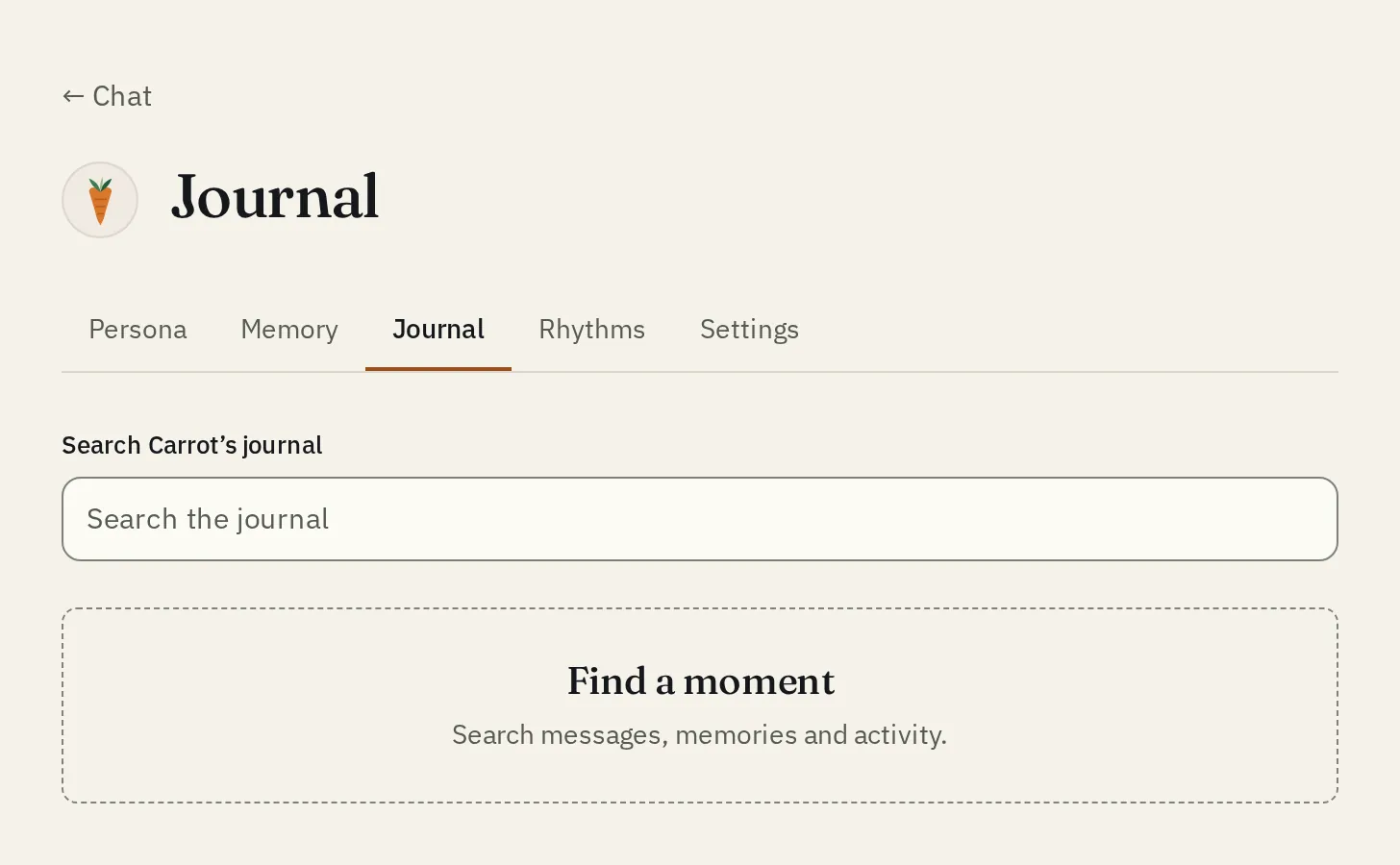
Find a moment again. The journal searches everything a sprout has said, remembered and done.
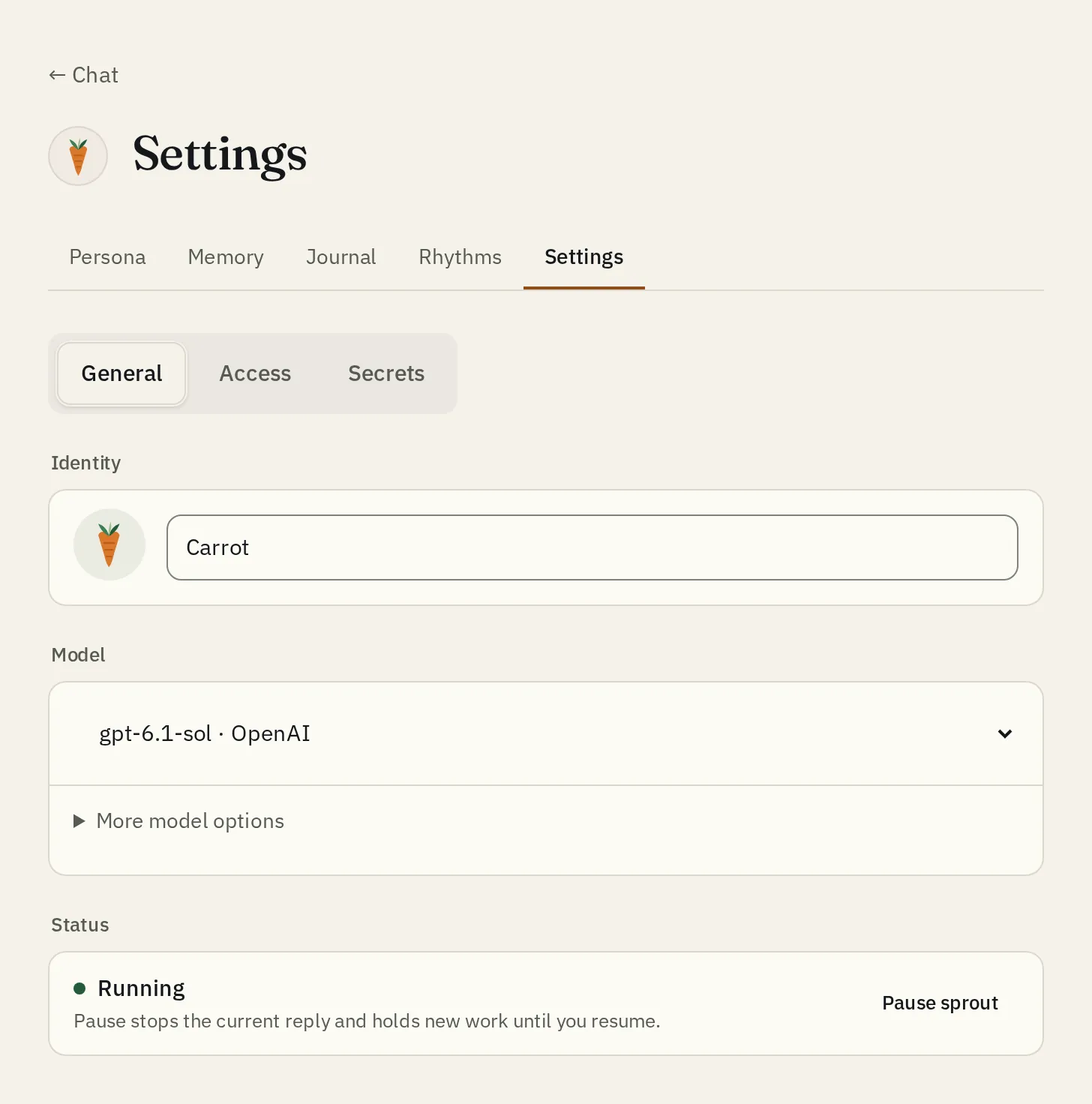
Give every sprout its own name, model, access and secrets. Pause a sprout to stop its current reply and hold new work until you resume.
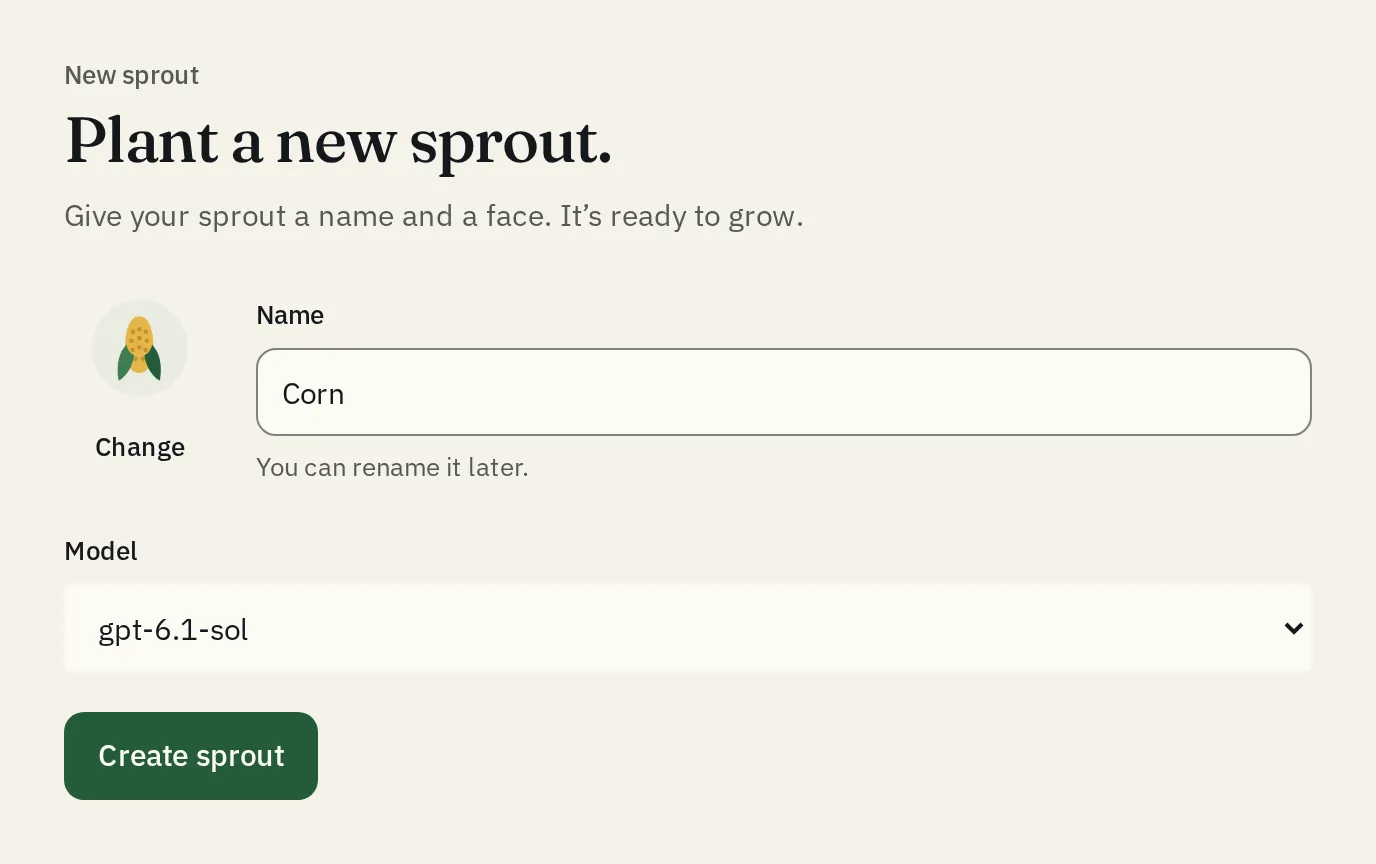
Pick a vegetable, give it a name and choose a model. You can rename it later.
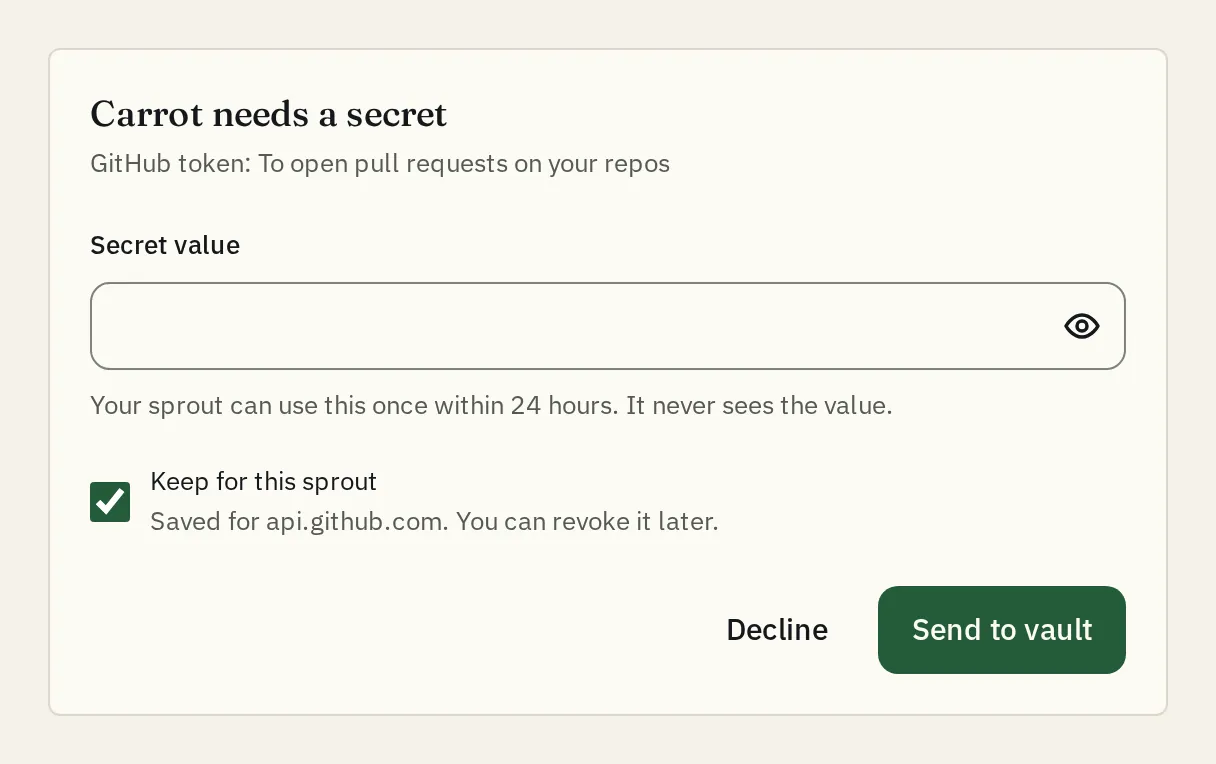
When a sprout needs a password or code, it asks in a card like this. What you type goes into a locked vault on your Mac: the sprout can use it but never sees it. Keep it for that sprout, or take it back later.
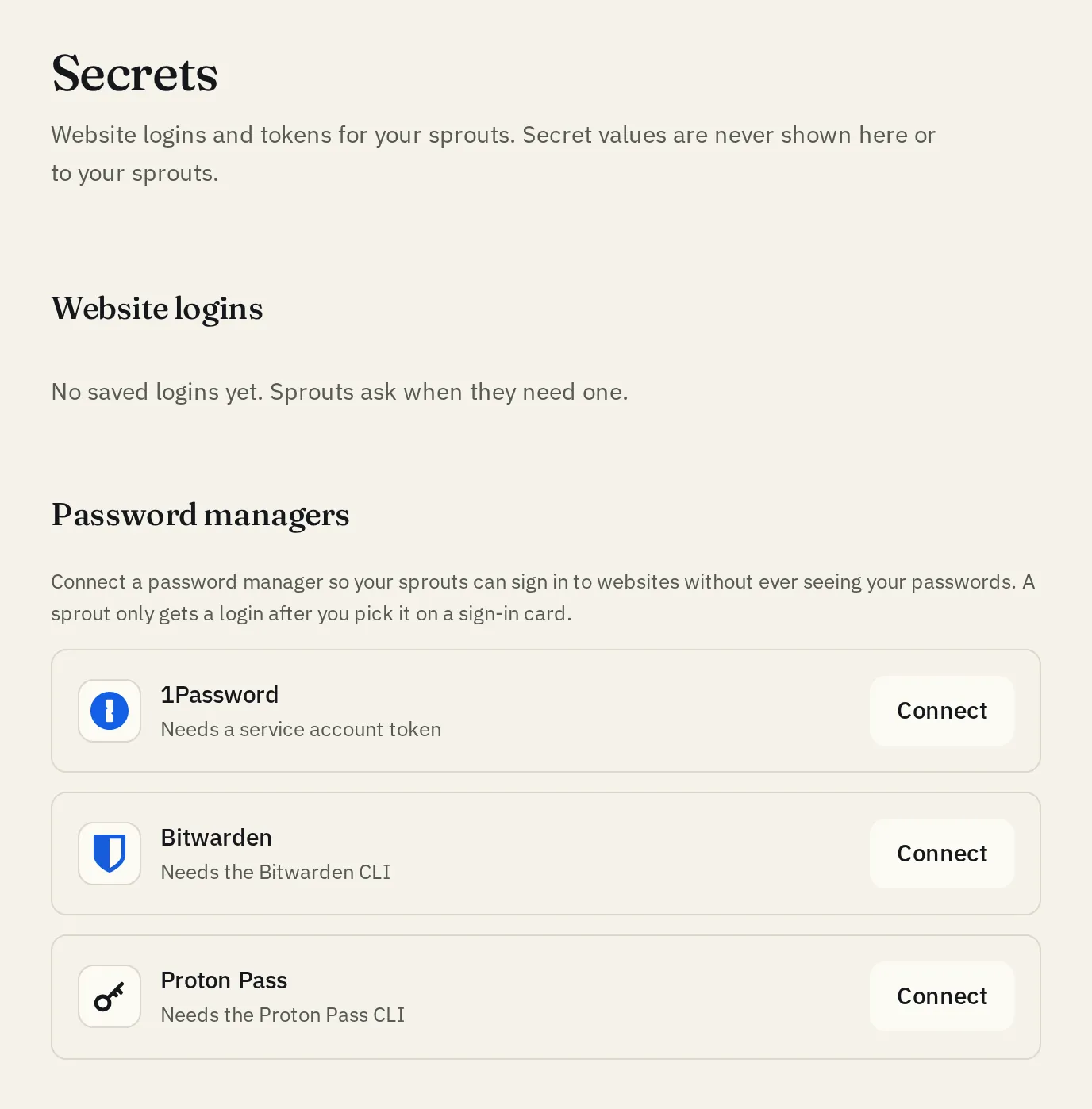
Connect 1Password, Bitwarden or Proton Pass. Sprouts sign in to websites without ever seeing your passwords, and only after you pick a login in a sign-in card.
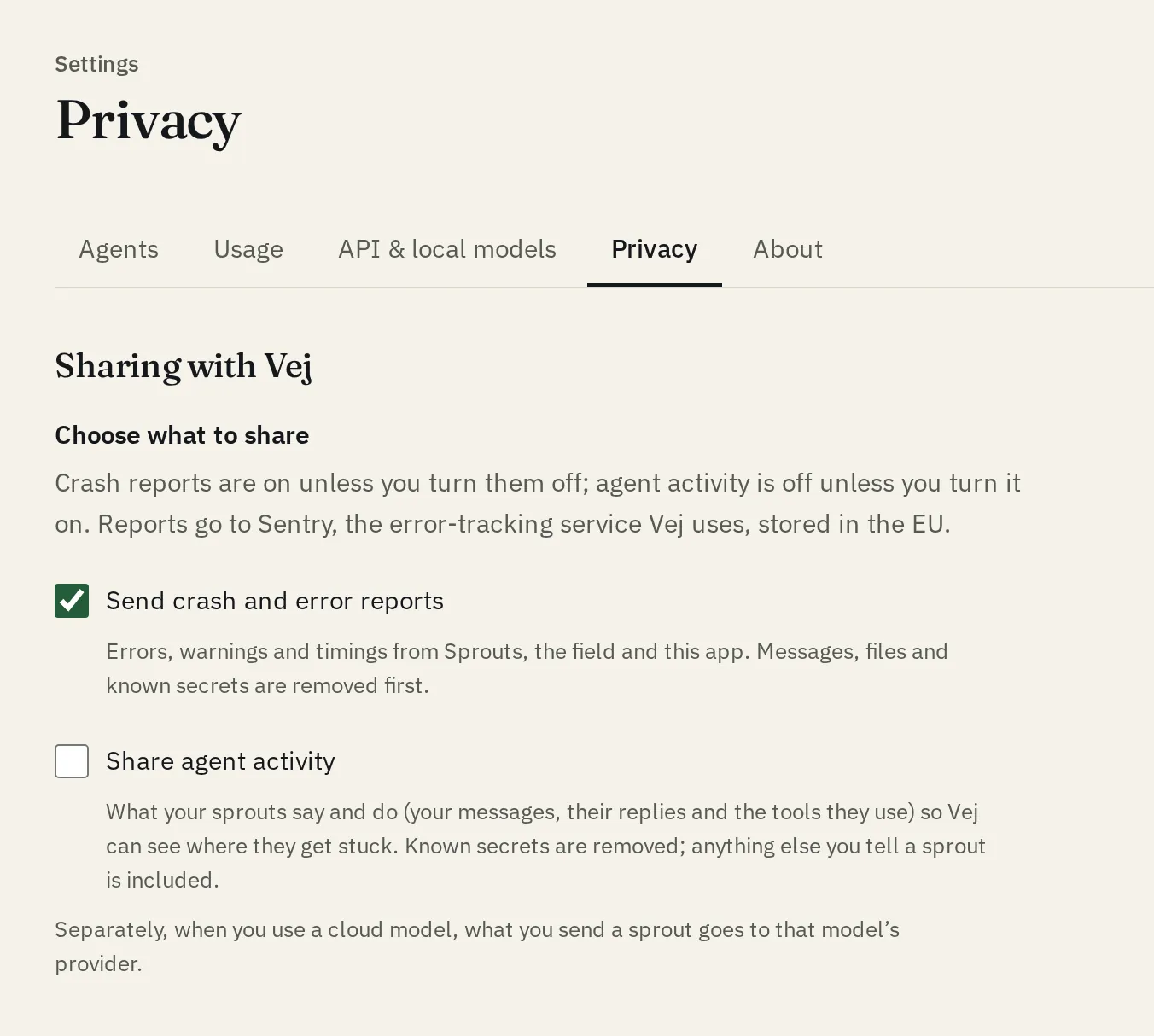
Crash reports are on unless you turn them off, and messages, files and known secrets are removed first. Sharing agent activity is off unless you turn it on.
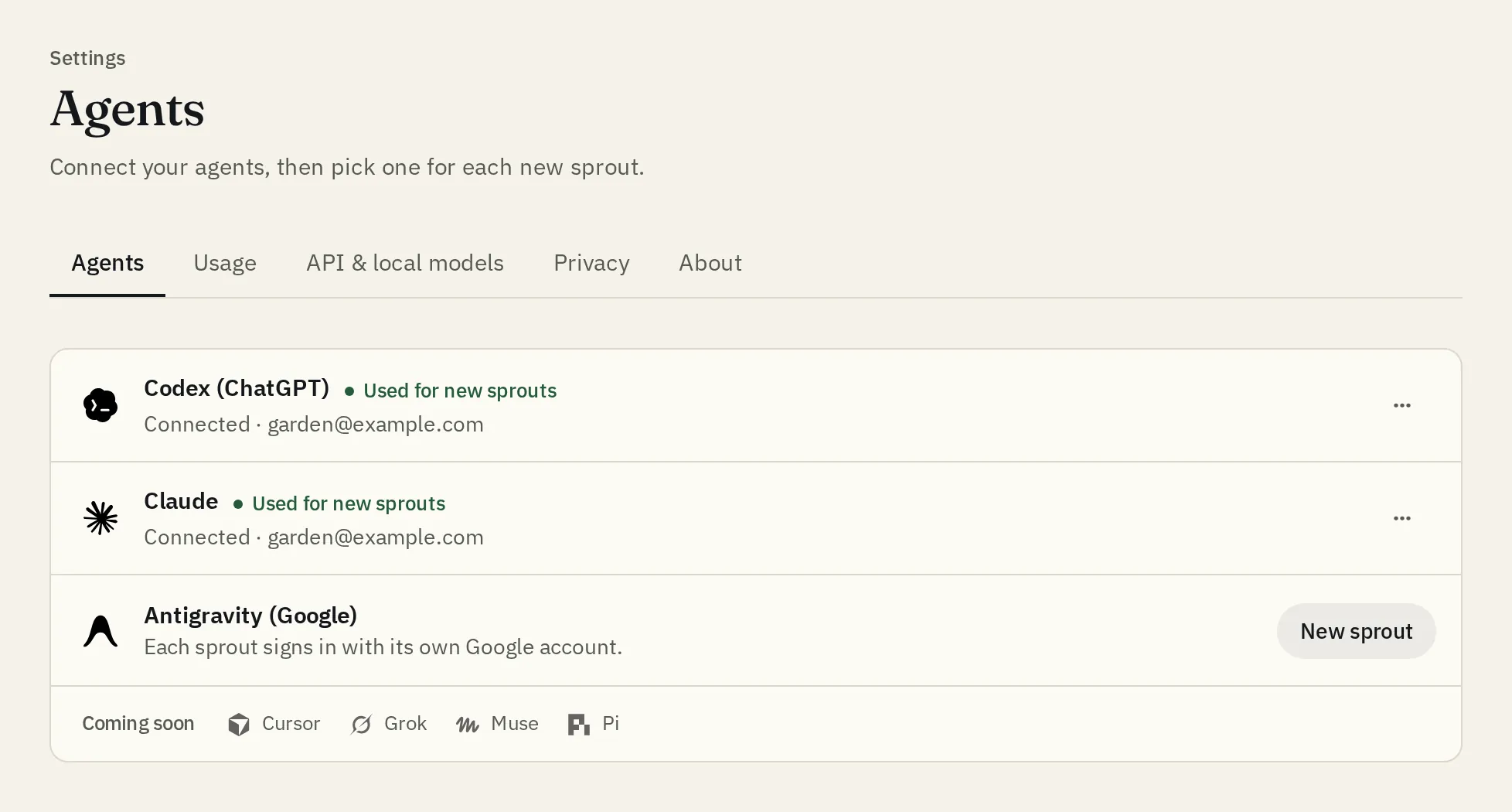
Sign in with your ChatGPT, Claude or Google account, then pick one for each new sprout. More are on the way.
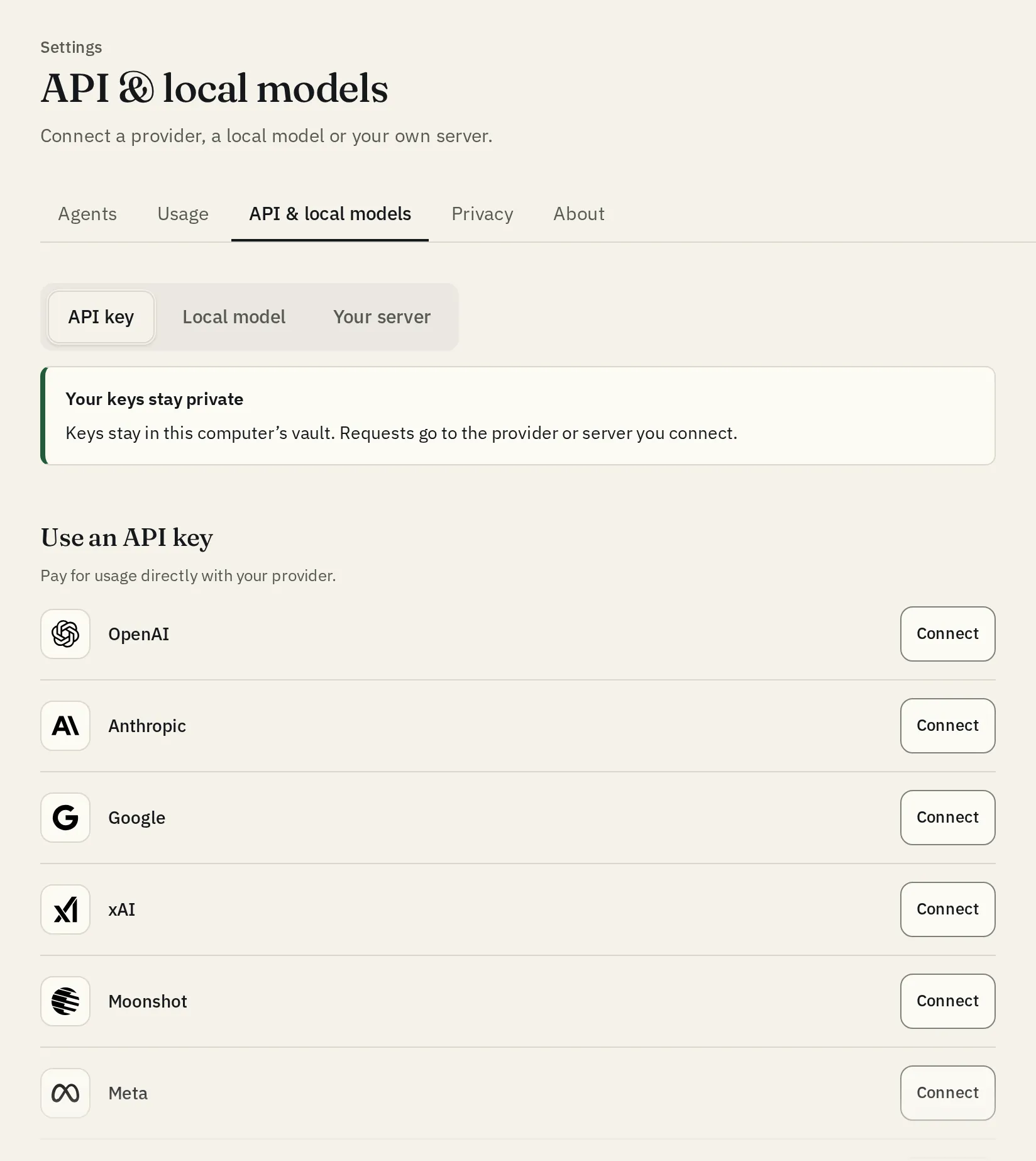
Prefer something else? Paste a key from OpenAI, Anthropic, Google and others, or run a model on this Mac. Keys stay in the vault on your Mac.
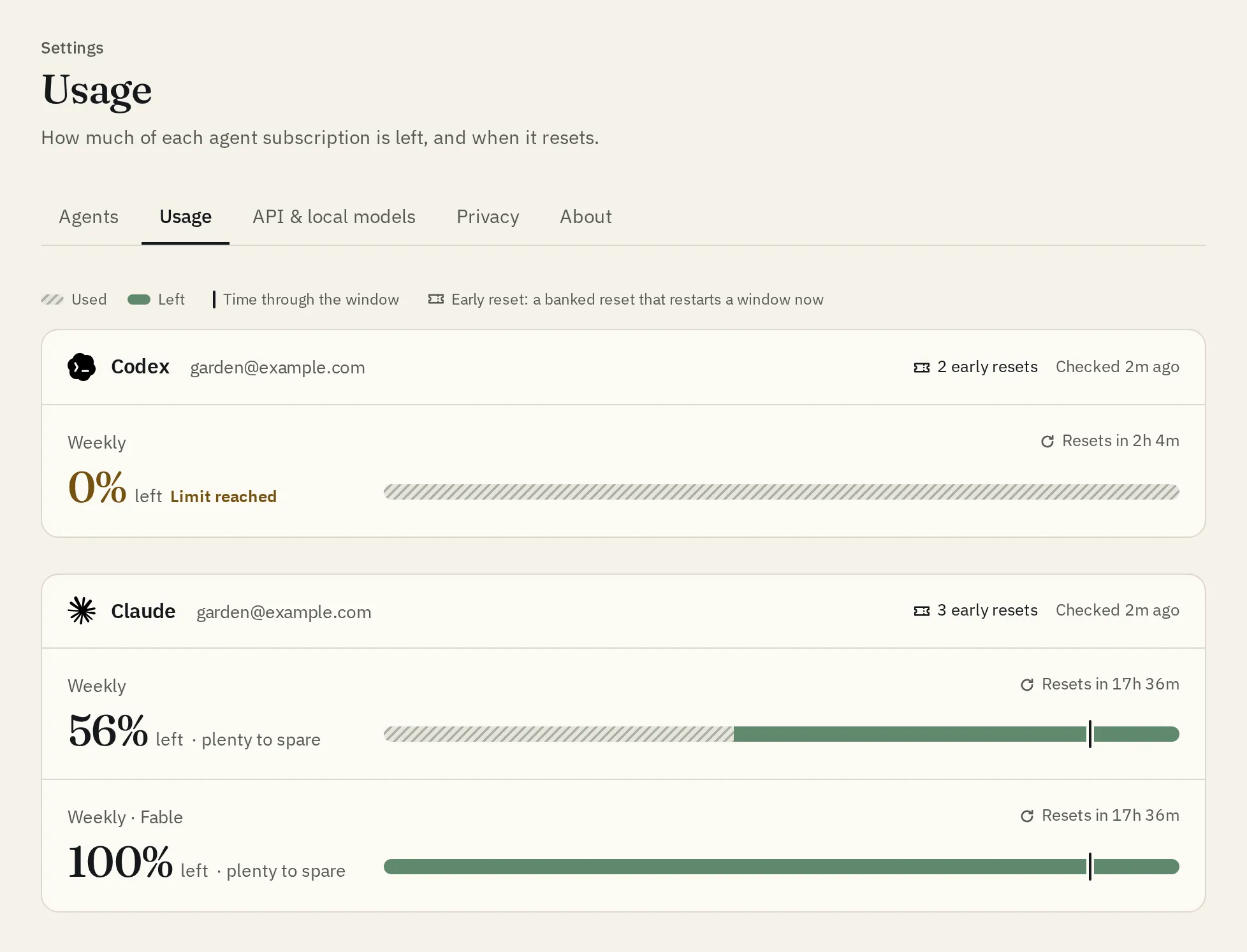
See how much of each subscription is left and when it resets. When a limit is reached, the sprout tells you when it will be back.
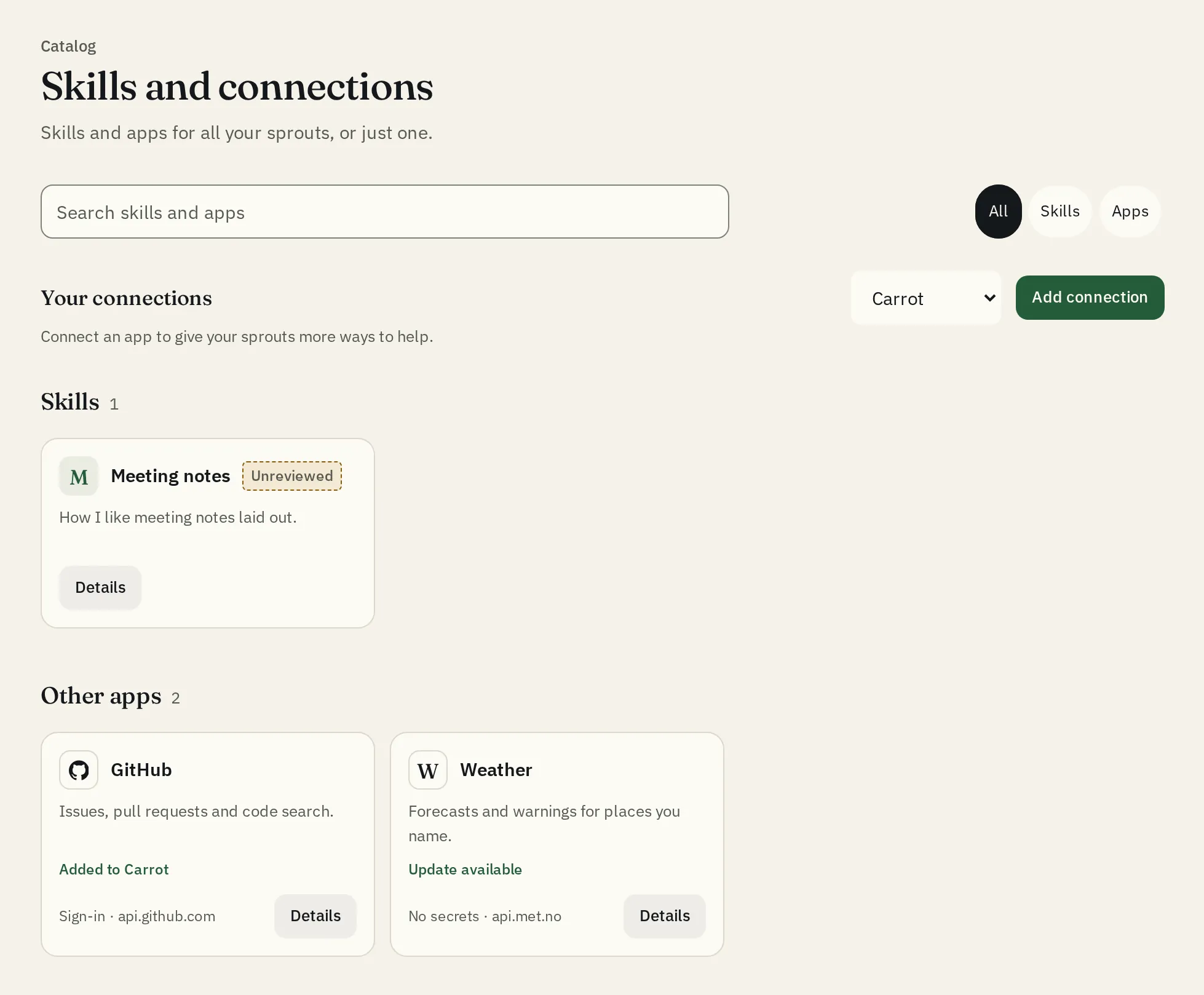
Teach your sprouts new skills and connect apps such as Excalidraw for sketches or Exa for web research, for every sprout or just one. Mail and calendar are coming. Everything in the catalog is reviewed; anything you add yourself is marked Unreviewed.
And also
Thinking, Working, Needs your approval: the sidebar, the garden and your iPhone show what each sprout is doing.
A Stop button sits in the composer while a sprout works.
If the connection drops, a message waits in the outbox and sends itself when your computer is back, for up to an hour.
Drop files into a chat on your Mac. On iPhone, add photos, the camera or files from one +.
Open the files a sprout names straight from the chat, with previews for PDF, Word, Excel and photos.
Drag sprouts into the order you like. It follows you to your iPhone.
⌘K jumps to any sprout, ⌘1–9 opens one, ⌘N plants a new one and ⌃⌘S toggles the sidebar.
Sprouts follows your system appearance on Mac and iPhone.
Sprouts keeps your Mac awake while it runs. Pause all from the menu bar whenever you need a break.
Working together
The cast
Every sprout gets a vegetable of its own. Each one comes in six colours, so a team can hold three carrots and still tell them apart.
Tap a sprout to try its colours.
You stay in charge
The Sprouts app on your Mac is the boundary. It holds the keys, asks before actions in your connected apps by default and decides what each computer can reach.
When a sprout needs a password or key, it asks in a private card. Your answer goes straight to the vault on your Mac. It never appears in the chat and never reaches the AI.
A sprout asks before it acts in a connected app. Set the actions you trust to Always allow. The check happens in the app, not in the sprout, so no sprout can approve for itself.
Each sprout’s computer goes online only through Sprouts, and a sprout asks before reaching other devices on your home or office network, like a printer or a shared drive. You can change that to Off or On.
App connections and skills come from a reviewed catalog. Anything you add yourself is marked Unreviewed, and updates show what changed before they apply.
Models and requirements
Each sprout uses the AI you pick, with up to four backups, so work carries on when one reaches its limit.
Sign in with your Vej account, the same one the Mac and iPhone apps use. Sprouts is separate from the hosted Pea API. Building with Vej’s own decision and extraction models? See Pea for developers.